
Setup
Pre-Setup Guide
Complete the required Windows preparation before launching a product and avoid common setup issues.
Install Microsoft Visual C++
Many loaders rely on Microsoft Visual C++ runtime files. Missing or damaged runtimes can cause a loader to close immediately, show a DLL error or never open.
- 1
Download the official redistributables
Open Microsoft’s latest supported Visual C++ downloads page. Install both the x64 and x86 packages so 64-bit and 32-bit components are covered.
- 2
Run both installers
Choose Install, or Repair if a package is already present. Finish both installers before moving on.
- 3
Restart Windows
Restart the computer so every runtime component is loaded cleanly before the first launch.
Disable Windows Defender
Windows Security and third-party antivirus services will proactively block "injection" methods. This is a false-positive detection that must be resolved before proceeding.
- 1
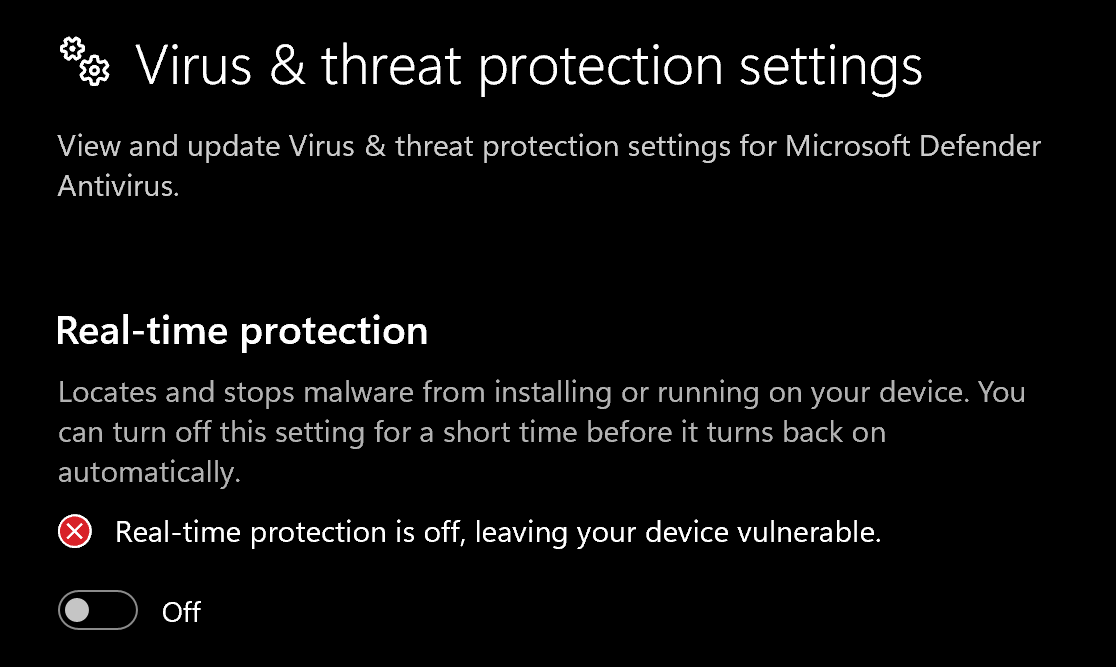
Disable Virus & threat protection settings
Search "Virus & Threat Protection Settings" in your windows search bar Click "Manage Settings" Disable all settings here, including "Real-time protection"
- 2
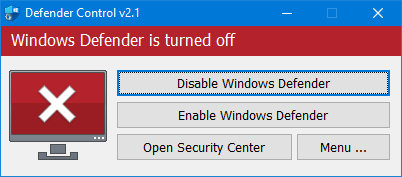
Download and Install DControl.
Download Winrar and install it. (This is requrired to extract .rar files) Download DControl - File passoword is sordum Open it and select "Disable Windows Defender
Remove conflicting anti-cheats
Some always-on anti-cheat services can conflict with setup even when their game is closed. Follow the current product instructions, because support differs between providers.
- 1
Check for FACEIT Anti-Cheat
If FACEIT Anti-Cheat is installed and your product instructions list it as incompatible, uninstall it from Windows Installed apps.
- 2
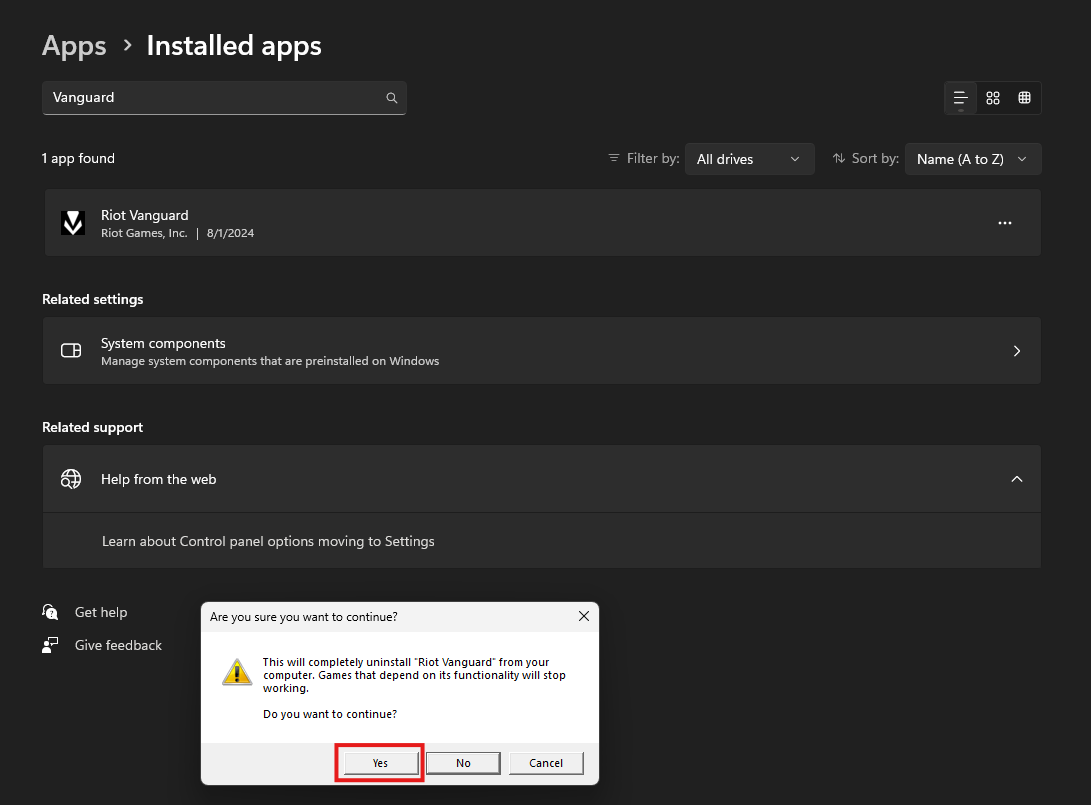
Check for Riot Vanguard
If Riot Vanguard is installed and listed as incompatible, uninstall it from Windows Installed apps. Vanguard may otherwise continue running in the background.
- 3
Restart after removal
Restart Windows after uninstalling an anti-cheat so its background services and drivers are fully unloaded.
Keep required anti-cheats installed
Do not remove an anti-cheat when the product specifically requires or supports it. The instructions supplied with your exact product take priority.
Final check before launching
- Confirm your Windows version and processor are supported on the product page.
- Check that the product is marked Undetected on the live status page.
- Keep SellAuth order page and licence key available.
- Read the product-specific launch order before opening the loader or game.
Still need help?
Send your order number, product name and a screenshot of the exact error.